Hyperliquid Mobile Trading: OneKey App Review & Tutorial
Why Mobile Onchain Perps Matter in 2026
Crypto traders increasingly want CEX-like speed with self-custody guarantees—and they want it on mobile. Perpetual DEXs are answering that demand, but the trade-off is real: the more often you trade from your phone, the more you’re exposed to phishing, fake front-ends, and approval scams.
This guide walks through how to trade Hyperliquid on mobile using OneKey App, with a practical setup tutorial and a security checklist tailored to today’s threat landscape.
What Is Hyperliquid (and What You Actually Need to Know)
Hyperliquid is a decentralized trading protocol known for a fast trading experience and an orderbook-style interface. To avoid scams, always start from Hyperliquid’s official links list (landing page, app, docs, and official social channels) before connecting any wallet. See: official links for Hyperliquid. (hyperliquid.zendesk.com)
Collateral and deposits: the key constraint
Most users fund trading via USDC on Arbitrum, using Hyperliquid’s bridge flow. The developer docs also spell out an important operational detail: deposits below a minimum threshold won’t be credited. (hyperliquid.gitbook.io)
OneKey App (Quick Review): Why It’s a Strong Mobile Companion for Hyperliquid
OneKey App is a self-custody wallet with an emphasis on multi-chain support, mobile usability, and open-source transparency:
- Multi-chain coverage (including Bitcoin and many EVM networks) and a built-in DeFi workflow, as described on the OneKey App Store listing. (apps.apple.com)
- Open-source codebase you can inspect on OneKey’s GitHub organization and the app-monorepo. (github.com)
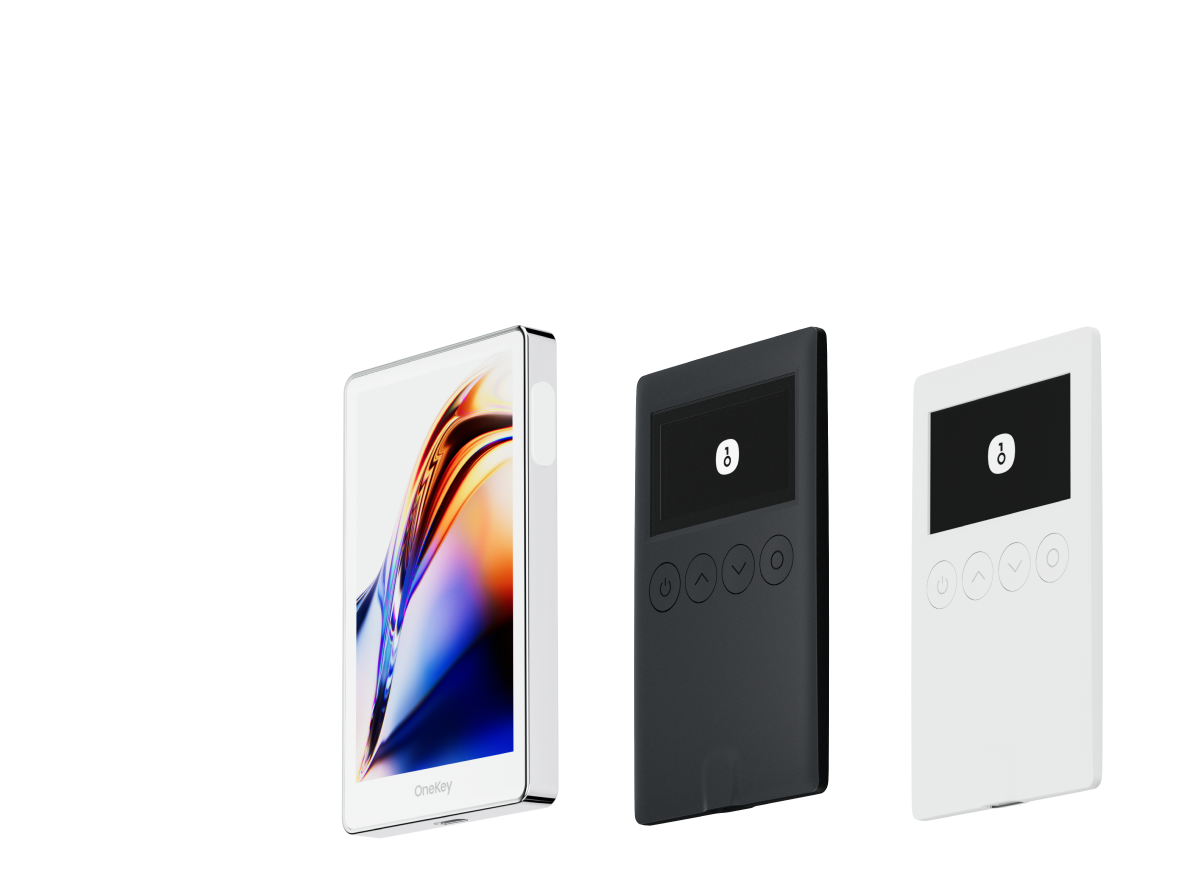
If you also use a OneKey hardware wallet, you can keep trading convenient on mobile while moving the most critical approvals to an offline confirmation step—useful for active traders who still want strong signing guarantees.
Hyperliquid on Mobile: 3 Practical Access Options
1) OneKey App built-in dApp browser (recommended)
You open Hyperliquid’s web app inside OneKey’s in-app browser and connect directly. This is typically the cleanest workflow for mobile signing.
2) WalletConnect from mobile (also common)
WalletConnect sessions are designed so apps can request signatures without exposing private keys, and sessions are end-to-end encrypted. See WalletConnect’s security overview: secure onchain access with WalletConnect. (walletconnect.com)
3) Third-party mobile interfaces (use caution)
Some third-party apps offer a mobile UI for Hyperliquid (example: Hyperly). These can be convenient, but treat them as separate software risk (even if they are non-custodial). Always verify the domain and app publisher before connecting a wallet.
Step-by-Step Tutorial: Trade Hyperliquid on Mobile with OneKey App
Step 0: Install and prepare OneKey App
- Install OneKey App from the official App Store page.
- Create a new wallet (or import an existing one).
- Set a strong device passcode and enable OS-level protections (Face ID / Touch ID) if you use them.
Step 1: Prepare funds on Arbitrum (USDC + a bit of ETH for gas)
Hyperliquid’s onboarding docs are explicit: you generally need USDC on Arbitrum and ETH on Arbitrum to pay gas for the deposit transaction. See: How to start trading. (hyperliquid.gitbook.io)
To bridge to Arbitrum using an official route, you can use Arbitrum Bridge.
Step 2: Open the correct Hyperliquid front-end (avoid fake sites)
Inside OneKey App’s dApp browser, manually navigate using Hyperliquid’s official links page first:
Then open the trading interface via the official app entry:
Step 3: Connect your wallet and enable trading
- Tap Connect on Hyperliquid.
- Approve the connection request in OneKey.
- Follow Hyperliquid’s prompt to Enable Trading (this is part of the standard onboarding flow). (hyperliquid.gitbook.io)
Step 4: Deposit USDC (read this carefully)
On the trade page:
- Tap Deposit
- Select USDC on Arbitrum
- Confirm the transaction in OneKey
Important constraints from Hyperliquid docs:
- Only USDC deposits from Arbitrum are supported (sending other assets may not credit as intended).
- Minimum deposit is 5 USDC (below that may not be credited).
See: Bridge2 (developer docs) and deposit troubleshooting note. (hyperliquid.gitbook.io)
Step 5: Place your first perp trade (mobile-friendly workflow)
From the market screen:
- Choose a market (e.g., BTC or ETH perps)
- Select Market or Limit
- Set position size and leverage conservatively
- Confirm the order
Hyperliquid’s onboarding guide summarizes the long/short flow and order confirmation steps here: How to start trading. (hyperliquid.gitbook.io)
Step 6: Manage risk like a mobile-first trader
On mobile, mistakes happen faster. A simple checklist:
- Keep leverage low until you’re fully comfortable
- Know your liquidation price before confirming
- Use TP/SL where appropriate
- Avoid trading immediately after approving new contracts (scan approvals first)
Security Checklist (Especially Important for Mobile)
1) Verify the domain every time
Hyperliquid explicitly publishes official links—use them. Start here: official links for Hyperliquid. (hyperliquid.zendesk.com)
2) Prefer wallets and connectors that warn on mismatched domains
WalletConnect is pushing stronger phishing defenses via domain verification tooling (for example, the Verify API concepts described here: protect users from phishing with WalletConnect Verify). (walletconnect.com)
3) Understand the bridge’s security model (and audits)
Hyperliquid’s docs describe validator-signing thresholds and a dispute mechanism for bridge operations: HyperCore bridge docs. (hyperliquid.gitbook.io)
For deeper security reading, you can review a public audit finding from Zellic here: Zellic audit findings for Hyperliquid. (reports.zellic.io)
Bonus: HyperEVM Basics (Optional, but Useful)
If you explore Hyperliquid’s EVM environment, the docs provide the key network parameters:
- Chain ID: 999
- RPC:
https://rpc.hyperliquid.xyz/evm - Explorers are also listed in the same doc
See: How to use the HyperEVM. (hyperliquid.gitbook.io)
Should You Use a OneKey Hardware Wallet for Hyperliquid Mobile Trading?
If you trade perps frequently, the main risk isn’t just “losing your phone”—it’s accidentally signing something malicious during a rushed moment. Pairing OneKey App with a OneKey hardware wallet can add a practical safety layer: keys stay on the device, and important actions can require physical confirmation.
If you want the convenience of Hyperliquid mobile trading without turning your phone into a single point of failure, that pairing is one of the cleanest setups you can run today—especially when combined with strict domain verification and a conservative permissions mindset.